
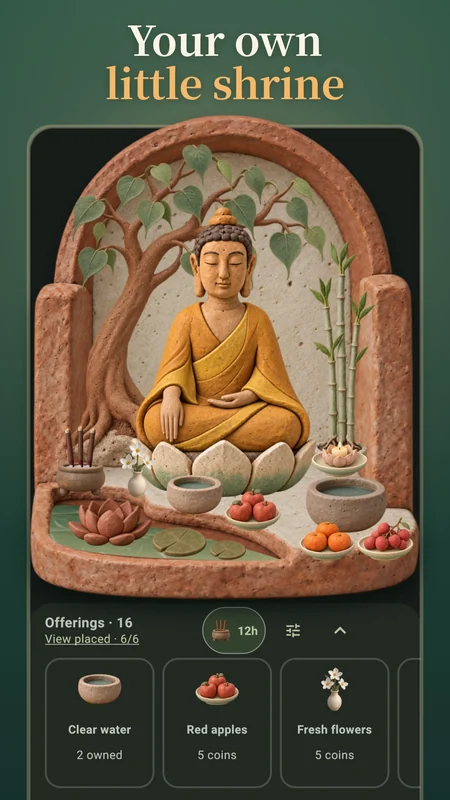
Add a Buddha widget
- Open Little Shrine and select Buddha as your active guardian. If this is your first visit, follow the Buddha shrine setup guide.
- Open Profile → Home screen. Under Shrine widget, tap Add to home screen and confirm placement if your launcher asks.
- On your Android home screen, tap the widget’s prayer shortcut to start a quiet moment. Tap the rest of the widget to open Little Shrine.
The widget shows your selected guardian and today’s practice status. If the in-app button doesn’t open a placement prompt, touch and hold an empty area of your Android home screen, choose Widgets, then find Little Shrine and place it.
Set your shrine as live wallpaper
- Choose the courtyard appearance and offerings you want to see behind your icons.
- In Profile → Home screen, find Live wallpaper and tap Set live wallpaper.
- Check Android’s wallpaper preview and apply it to your home screen. If the preview doesn’t open, go to your phone’s wallpaper settings and choose Little Shrine under live wallpapers.
The light in the scene follows the time of day. Animation rests while the screen is off or battery saver is active. To change the guardian shown, return to Little Shrine and select a different guardian.